
Pioneer Airlink App: Getting StartedUpdated 19 days ago
Introduction
This article provides a high-level overview of the Pioneer Airlink app initial setup and operation.
Each section in this article represents a step in the setup process. Click the link in each section to learn about that specific step.
After creating a Pioneer Airlink app account and adding a device, the device will remain connected even if the user reinstalls the app and logs back in.
1. Install the Wireless Internet Access Device
Users must install a wireless internet access device in order to monitor, control, and program their air conditioner via smartphone.
Depending on the model of air conditioner, users must either install the internet access module or the USB drive module.
Internet Access Module
The Diamante Essenza High-Wall (WYT-20U) and Diamante Pro High-Wall (WYT-20S) high-wall systems require the internet access module to be installed. The internet access module is sold separately.
For information on installing the internet access module, click this link. 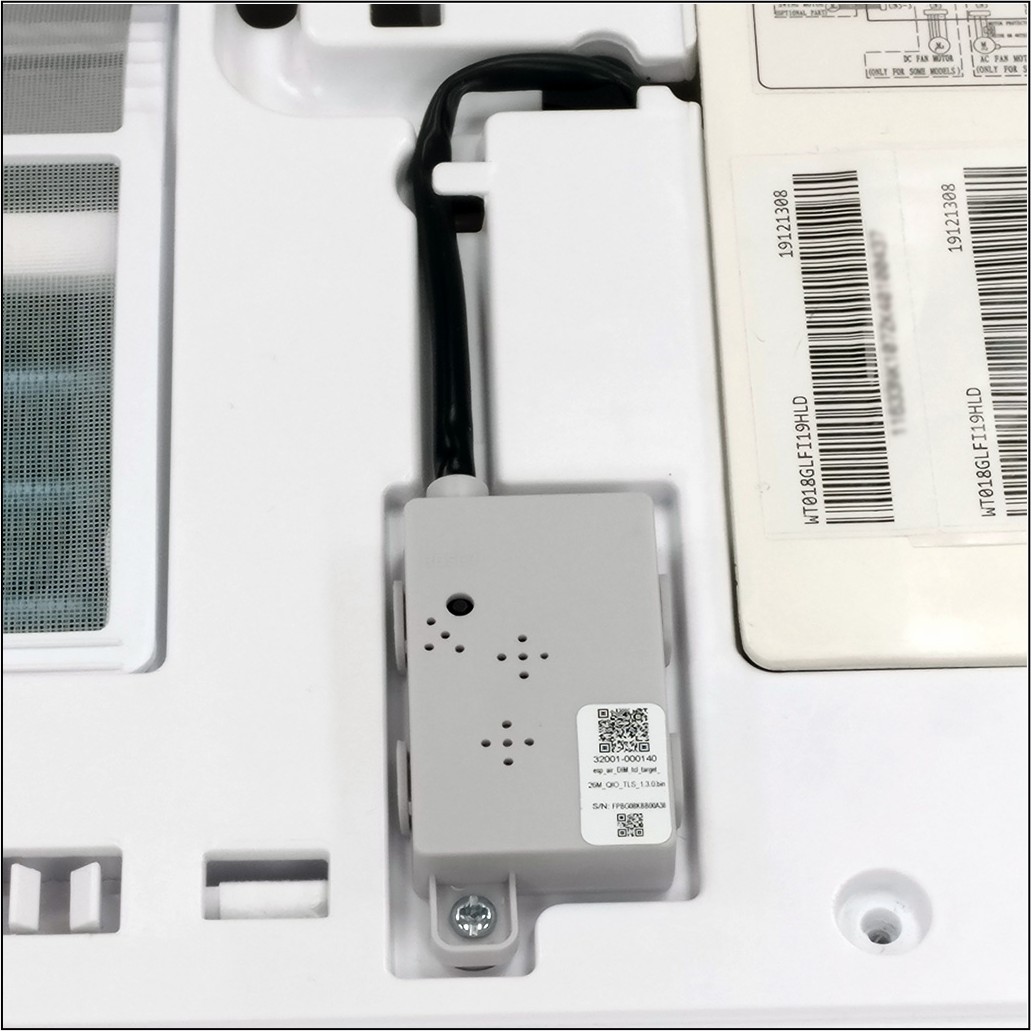
USB Drive Module
The Quantum Ultra High-Wall (WYT-24) and Quantum Hyperformance High-Wall (WYT-25) high-wall systems need the USB drive module installed. The USB drive is included with the purchase of these systems.
The Quantum Ultra 8-Way Ceiling Cassette (CYT-24), Ducted Ceiling Concealed (RYT-24), and Universal Floor-Ceiling Flex (UYT-24) systems have the USB drive module already installed. These systems are part of our light commercial lineup.
Click this link for information on installing the USB drive.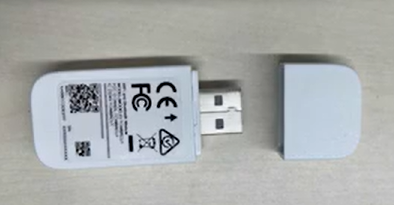
2. Download & Install the App
Next, download and install the Pioneer Airlink app on your smartphone. The app is available in the Google "Play Store" and Apple "App Store".
For more information, click this link.
3. Create a Pioneer Airlink App Account
First-time users must create a Pioneer Airlink app account in order to access the app's functions.
Read this article to learn how to create an account.
4. Login
Log into the Pioneer Airlink app using the account credentials.
Get more information by reading this article.
5. Add & Pair Devices
Add and pair the device to conveniently control the system. More than one device can be paired to the app.
The procedure for adding and pairing wall-mounted devices is different from light commercial devices. The light commercial models, which include the ceiling cassette, ducted, and floor-ceiling flex systems, require an explicit AP-mode selection inside the app, even after the unit itself is already in pairing mode.
Click this link to learn how to add and pair wall-mounted devices to the app.
Click this link to learn how to add and pair light commercial devices to the app.