
Create Scenes in the Pioneer Airlink AppUpdated 21 days ago
Introduction
This article explains how to create scenes in the Pioneer Airlink app.
A scene is a pre-programmed, single-command setting that can be activated automatically or manually.
The app offers two types of scenes. Automation scenes enable users to automate routine tasks. Tap-to-Run scenes provide users with the ability to create and enable tasks whenever. Both procedures are explained below.
Automation Scenes
Users can create automation scenes for different purposes. First, users select the trigger condition, then they choose the task that runs when the scene activates. The following are examples of trigger conditions:
- When the weather changes: When the local temperature is greater than 82°F (28°C).
- Schedule: 7 a.m. every morning.
- When the device status changes: When an unusual activity is detected.
1. Open the Pioneer Airlink app.
2. Open the Scene tab. 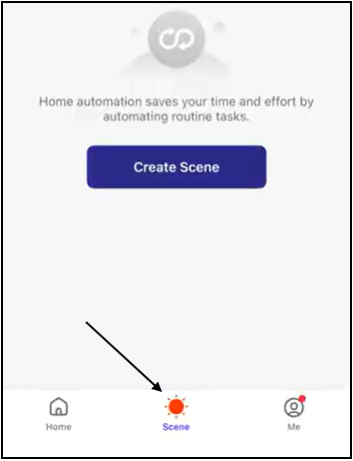
3. Tap the "Create Scene" button in the Automation screen or the plus icon to create a scene. 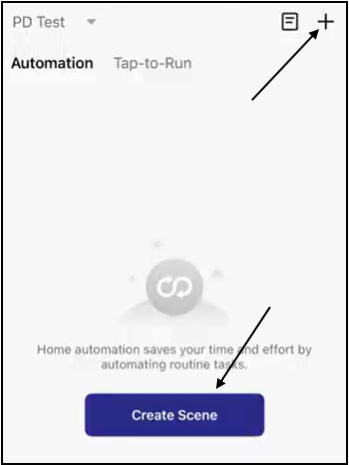
4. Select the type of trigger condition for the scene. In this example, we'll select the "When device status changes" option. 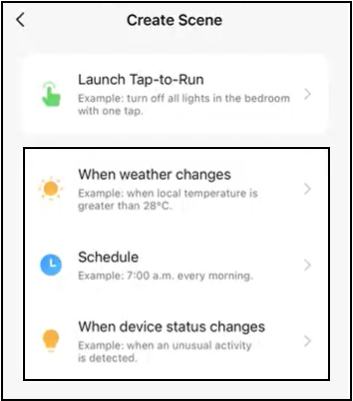
5. Select the device you want to create the scene for. 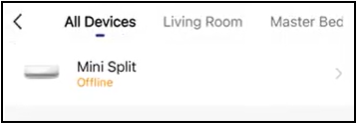
6. Select the function for the trigger condition. We'll select power in this example. 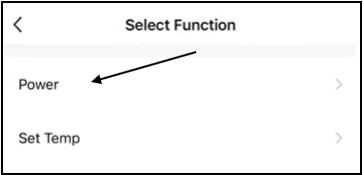
7. Select either power on or power off for the trigger condition. In this example, we'll choose off. 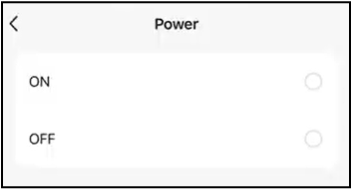
8. After selecting the function, tap "Next". 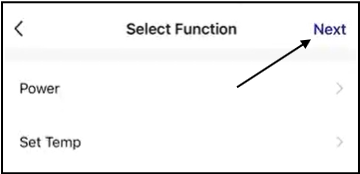
9. Tap the plus icon in the "Then" section to add the task that will run when the scene is triggered. 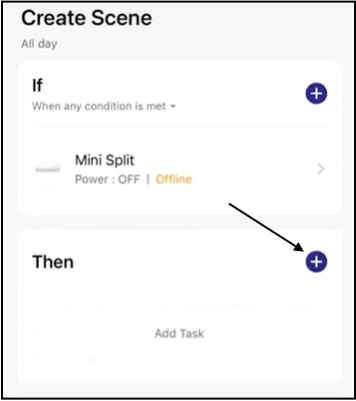
10. Select the task you want to add. In this example, we'll choose the "Send notification" option. 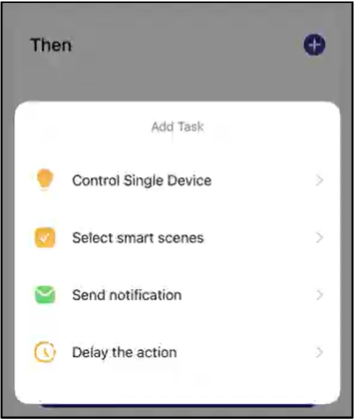
Control Single Device: Users can select a function that will run when the trigger condition is met.
Select smart scenes: Users can select an existing smart scene for the task.
Delay the Action: Users can delay the action for a specific duration, up to a maximum of 5 hours.
11. Select the notification method, then tap "Next". 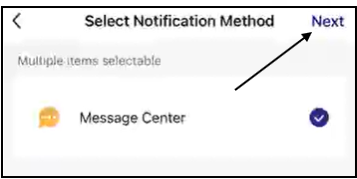
12. After selecting the If and Then conditions, tap "Save" to confirm the scene.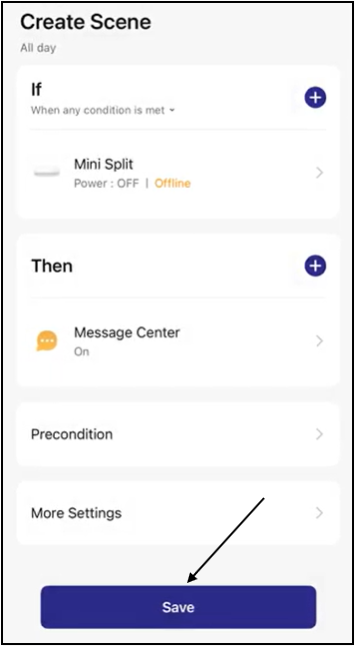
13. Enter a name for the new scene, then tap "Confirm". 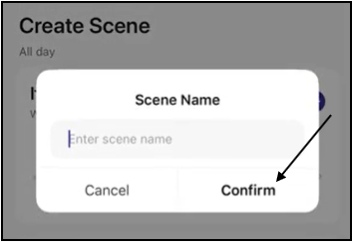
The new scene will display in the Automation section of the Scene tab. 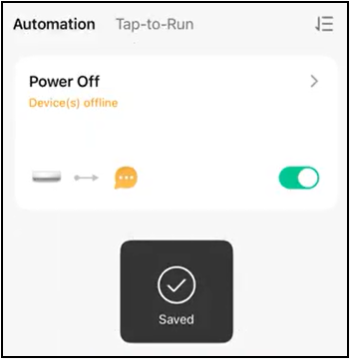
Delete Automation Scenes
1. Automation scenes can be deleted by opening up the existing scene and tapping "More Settings". 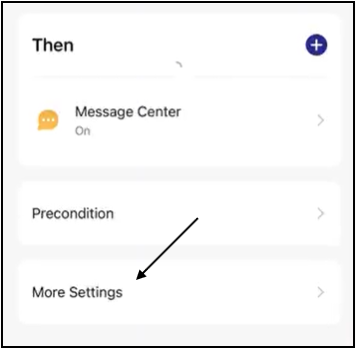
2. Tap "Delete" to remove the scene. 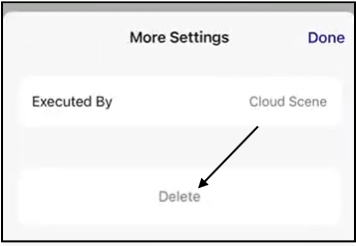
3. Tap "Confirm" to verify the removal of the scene. 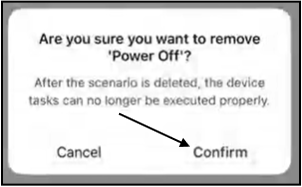
The automation scene is now deleted.
Turn On/Off Automation Scenes
Users can turn off the automation scene by toggling off the switch. 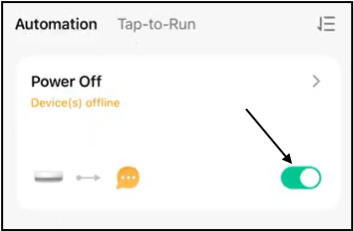
Users can turn on the automation scene by toggling on the switch, then tapping "Enable". 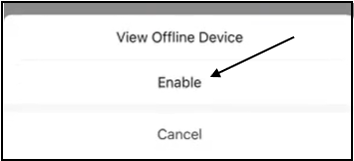
Tap-to-Run Scenes
Users can enable tasks whenever using tap-to-run scenes.
1. Open the Pioneer Airlink app.
2. Open the Scene tab.
3. Tap the "Create Scene" button in the Tap-to-Run screen or tap the plus icon to create a scene. 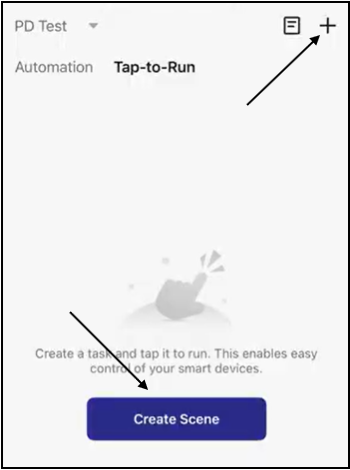
4. Select the "Launch Tap-to-Run" option. 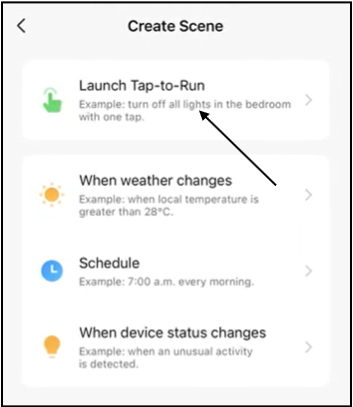
5. Tap the plus icon in the "Then" section to add the task that will run when the scene is triggered.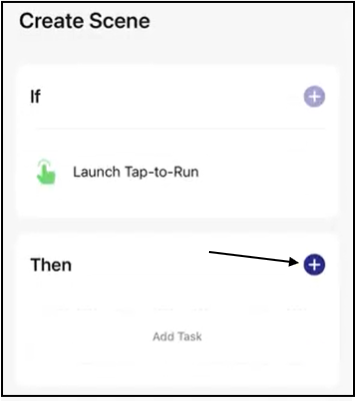
6. Select the task you want to add. In this example, we'll choose the "Control Single Device" option. 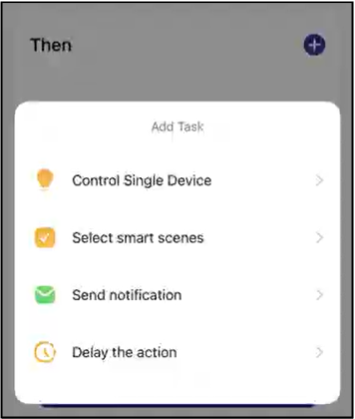
Control Single Device: Users can select a function that will run when the trigger condition is met.
Select smart scenes: Users can select an existing smart scene for the task.
Delay the Action: Users can delay the action for a specific duration, up to a maximum of 5 hours.
7. Select the device you want to create the scene for. 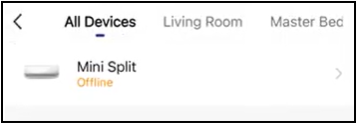
8. Select the function for the trigger condition. We'll select mode in this example. 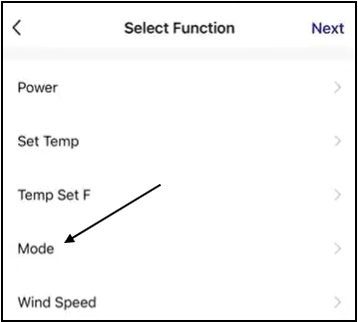
9. Select the mode type, then tap "Save". In this example, we'll select "Cool".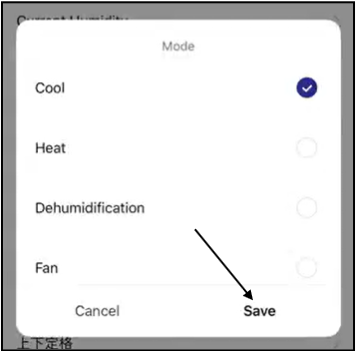
10. After selecting the function, tap "Next". 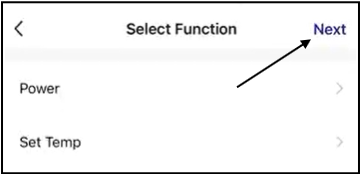
11. Tap "Save" to confirm the scene. 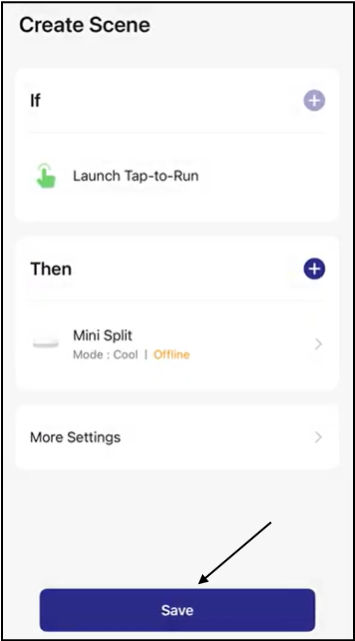
12. Enter a name for the new scene, then tap "Confirm". 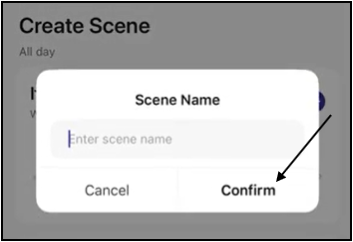
The new scene will display in the Tap-to-Run section of the Scene tab. 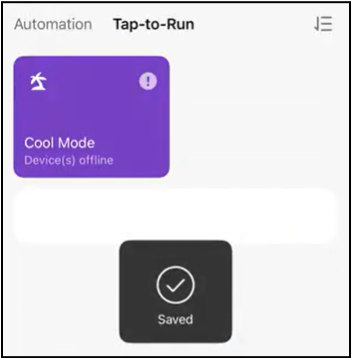
To activate the tap-to-run scene, tap it and then select "Start". 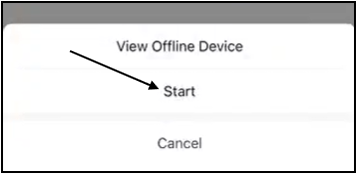
Delete Tap-to-Run Scenes
1. Tap-to-Run scenes can be deleted by tapping the exclamation point icon next to the existing scene. 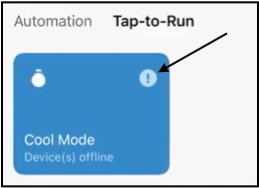
2. Tap "More Settings". 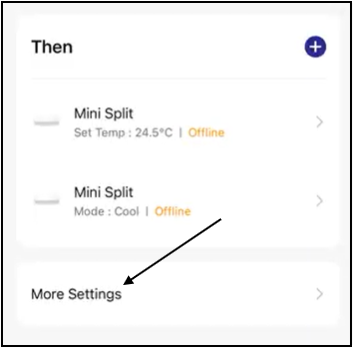
3. Tap "Delete" to remove the scene. 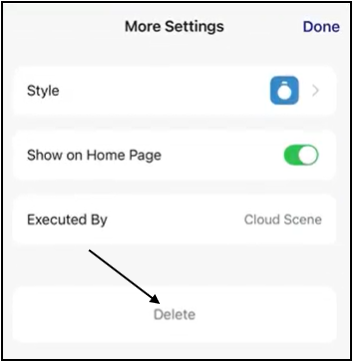
4. Tap "Confirm" to verify the removal of the scene. 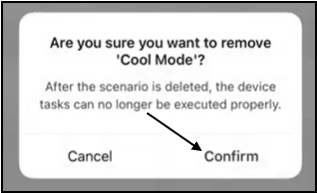
The tap-to-run scene is now deleted.